1. Install Halo
Install Halo from the Chrome Web Store. It works in Chrome and in browsers that install from the Chrome Web Store, such as Edge, Brave and Arc. There’s nothing to set up.2. Save something
1
Start dragging
Press on an image and move it a little, as if you were dragging it somewhere. A small
Shift hint appears above it.

2
Tap Shift
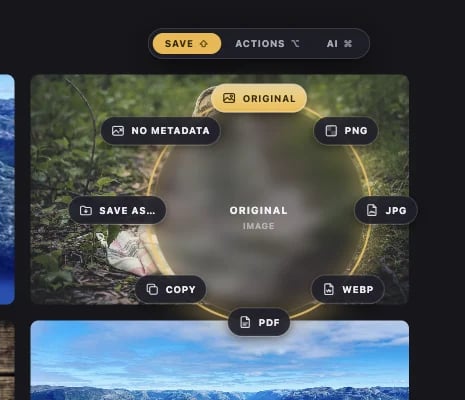
Tap it; you don’t need to hold it. The Halo opens around your pointer: Original, PNG,
JPG, WebP, PDF, Copy, Save as…, No metadata.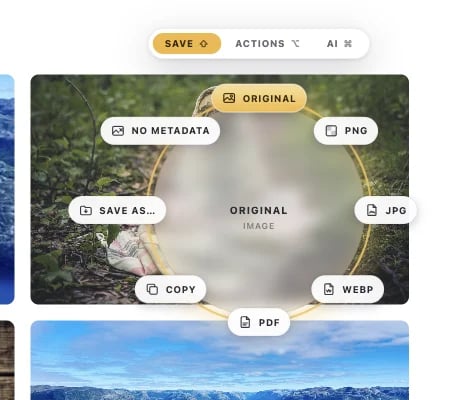
3
Move toward an option and let go
The option you’re heading for lights up. You don’t have to land on it exactly, because
the direction is what counts. Let go and a small card shows the progress.
Downloads/Halo. Click Show in folder on the card to see it.


Some sites stop you dragging images, Instagram for one. On those, hold Shift and press
on the image. The ring opens the same way.
3. Make it yours
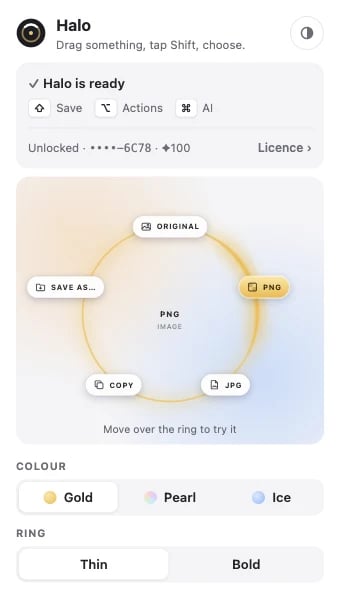
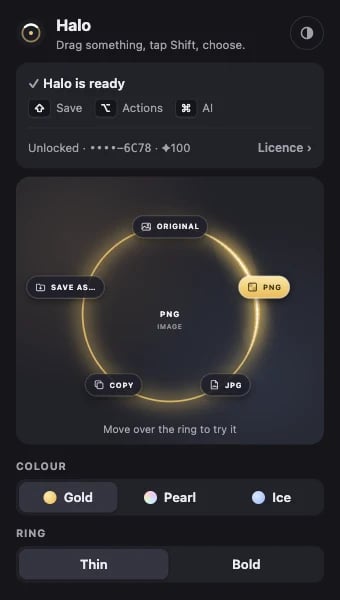
Click Halo in Chrome’s toolbar to pick a colour (Gold, Pearl or Ice) and a ring (thin or bold), and to choose light, dark, or your system’s setting. The preview there works like the real ring.