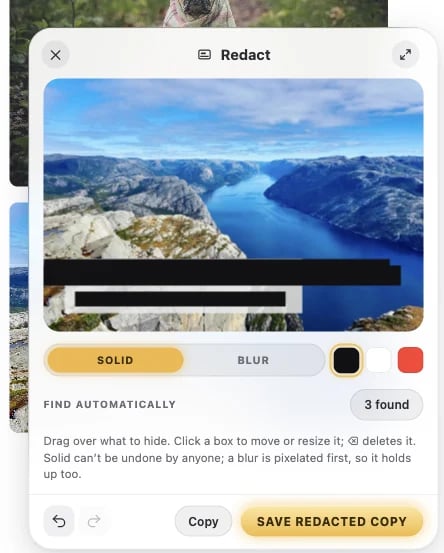
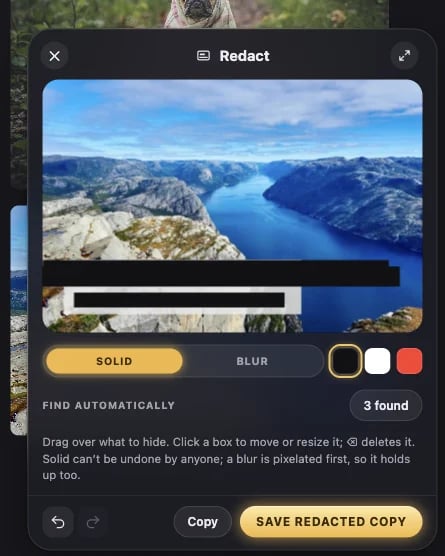
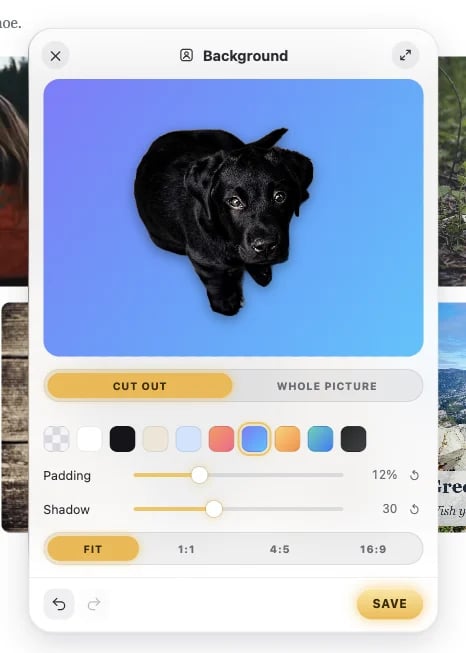
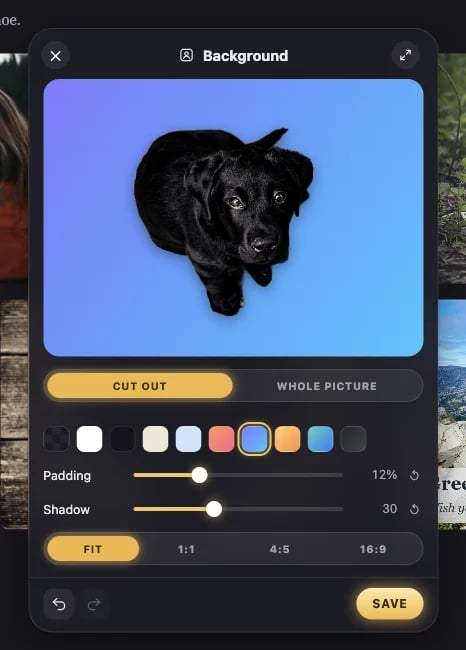
Halo can fix a picture or a video before it saves it. Start dragging it, tap Shift, then tap Alt (⌥ Option on a Mac) for the tools ring, and let go over a tool. A small window opens right on the page. Everything happens in your browser: nothing is uploaded to edit it. Save applies your changes to the full-size original, not the smaller copy the page shows, and the file lands in Downloads/Halo.

Pictures

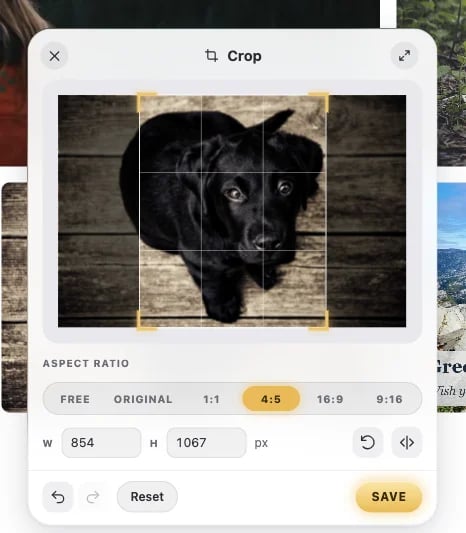
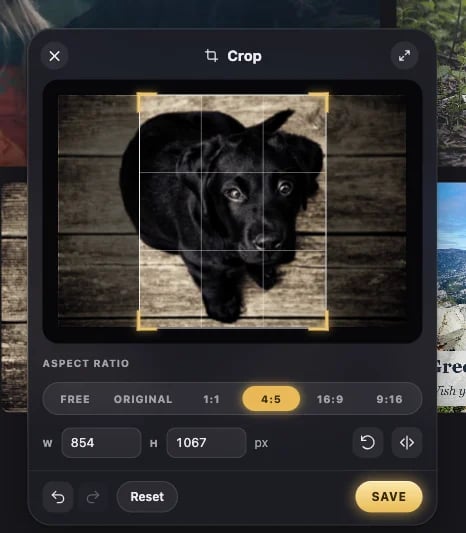
The Crop window: a puppy photo with a 4:5 crop box, the ratios, and the size in pixelsThe Crop window: a puppy photo with a 4:5 crop box, the ratios, and the size in pixels

Changing what you’ve drawn

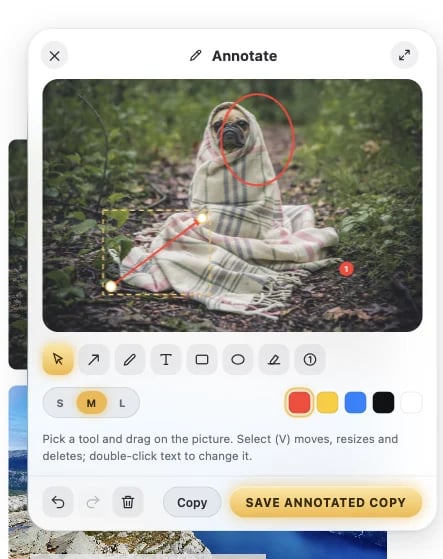
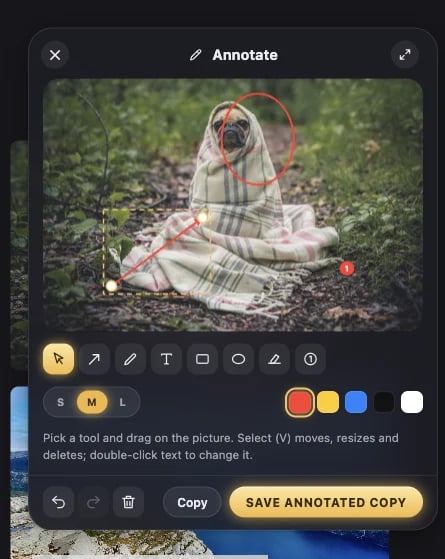
In Redact, click a box to select it. In Annotate, pick Select (V) first, then click a mark. Once something is selected:
  • drag it to move it, or drag its handles to resize it (an arrow has one at each end);
  • click a colour, a size, or Solid / Blur to change it;
  • press ⌫ (Delete), or click the bin, to remove it;
  • use the arrow keys to nudge it by a pixel, or by 10 with Shift.
Double-click a piece of text to change it. Something you’ve just drawn is already selected, so you can adjust it straight away.

Video

Video windows have their own player. The video on the page pauses while one is open, and goes back to where it was when you close it.
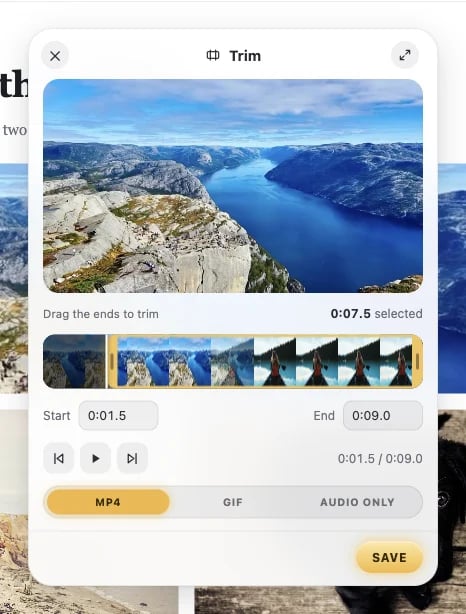
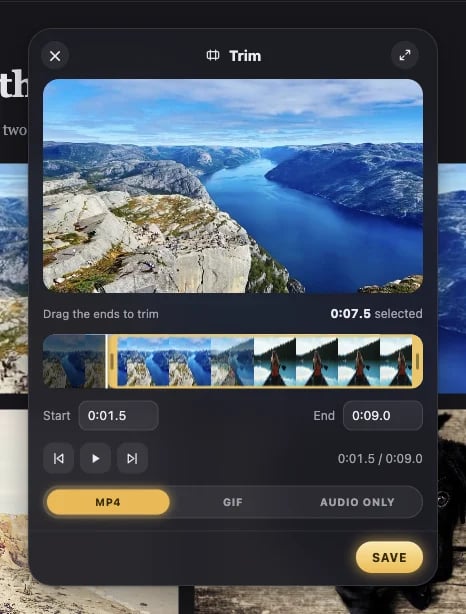
The Trim window: the video, a filmstrip with the part to keep selected, start and end times, and MP4, GIF or Audio onlyThe Trim window: the video, a filmstrip with the part to keep selected, start and end times, and MP4, GIF or Audio only
The video tools save H.264 MP4s, which play everywhere (QuickTime included), starting exactly where you set them. The sound is copied as it is unless the speed changes. Mute (in the Save ring, no window) saves the video without its sound, with the picture untouched.

In every window

Keys in Annotate

Uses

Opening a window is free. Saving or copying from it counts as one use, like any other save. See Unlock Halo.